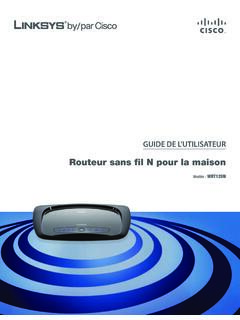
Transcription of WRT120N User Guide
1 USER GUIDEW ireless-N Home RouterModel: WRT120N About This GuideiWireless-N Home RouterAbout This GuideIcon DescriptionsWhile reading through the User Guide you may see various icons that call attention to specific items. Below is a description of these icons:NOTE: This check mark indicates that there is a note of interest and is something that you should pay special attention to while using the product. WARNING: This exclamation point indicates that there is a caution or warning and it is something that could damage your property or : This globe icon indicates a noteworthy website address or e-mail ResourcesWebsite addresses in this document are listed without http:// in front of the address because most current web browsers do not require it.
2 If you use an older web browser, you may have to add http:// in front of the web International and TrademarksLinksys, Cisco and the Cisco Logo are registered trademarks or trademarks of Cisco Systems, Inc. and/or its affiliates in the and certain other countries. Other brands and product names are trademarks or registered trademarks of their respective holders. Copyright 2009 Cisco Systems, Inc. All rights reserved. Table of ContentsiiWireless-N Home RouterChapter 1: Product Overview 1 Front Panel.. 1 Back Panel .. 1 Chapter 2: Wireless Security Checklist 3 General Network Security Guidelines.
3 3 Additional Security Tips .. 3 Chapter 3: Advanced Configuration 4 Setup > Basic Setup .. 4 Setup > DDNS.. 8 Setup > MAC Address Clone.. 9 Setup > Advanced Routing .. 9 Wireless > Basic Wireless Settings ..10 Wireless > Wireless Security ..12 Wireless > Wireless MAC Filter.. 14 Wireless > Advanced Wireless Settings ..15 Security > Firewall ..16 Security > VPN Passthrough.. 17 Access Restrictions > Internet Access ..17 Applications and Gaming > Single Port Forwarding.. 19 Applications and Gaming > Port Range Forwarding ..19 Applications & Gaming > Port Range Triggering ..20 Applications and Gaming > DMZ.
4 20 Applications and Gaming > QoS ..21 Administration > Management.. 23 Administration > Log ..24 Administration > Diagnostics ..24 Administration > Factory Defaults.. 25 Administration > Firmware Upgrade ..25 Status > Router ..26 Status > Local Network ..26 Status > Wireless Network ..27 Appendix A: Troubleshooting 28 Appendix B: Specifications 29 Appendix C: Warranty Information 30 Limited Warranty.. 30 Table of ContentsiiiWireless-N Home RouterAppendix D: Regulatory Information 32 FCC Statement ..32 FCC Radiation Exposure Statement ..32 Safety Notices.. 32 Industry Canada Statement ..32 Avis d Industrie Canada.
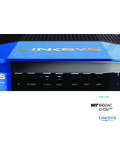
5 33 Wireless Disclaimer ..33 Avis de non-responsabilit concernant les appareils sans fil ..33 User Information for Consumer Products Covered by EU Directive 2002/96/EC on Waste Electric and Electronic Equipment (WEEE).. 34 Appendix E: Software End User License Agreement 38 Cisco Products ..38 Software Licenses ..38 Chapter 1 Product Overview1 Wireless-N Home RouterChapter 1: Product OverviewThank you for choosing the Linksys by Cisco Wireless-N Home Router. The Router lets you access the Internet via a wireless connection or through one of its four switched ports. You can also use the Router to share resources such as computers, printers and files.
6 A variety of security features help to protect your data and your privacy while you are online. Security features include WPA2 security, a Stateful Packet Inspection (SPI) firewall, and NAT technology. Configuring the Router is easy using the provided browser based Panel1, 2, 3, 4 (Blue) These numbered LEDs, corresponding with the numbered ports on the Router s back panel, serve two purposes. If the LED is continuously lit, the Router is successfully connected to a device through that port. A flashing LED indicates network activity over that port. Wi-Fi Protected Setup Button If you have client devices, such as wireless adapters, that support Wi-Fi Protected Setup, then you can use Wi-Fi Protected Setup to automatically configure wireless security for your wireless use Wi-Fi Protected Setup, run the Setup Wizard, or refer to Wi-Fi Protected Setup, page Protected Setup LED (Blue/Amber) The LED lights up blue when wireless security is enabled.
7 It flashes blue for two minutes during Wi-Fi Protected Setup. The LED lights up amber if there is an error during the Wi-Fi Protected Setup process. Make sure the client device supports Wi-Fi Protected Setup. Wait until the LED is off, and then try again. The LED flashes when a Wi-Fi Protected Setup session is active. The Router supports one session at a time. Wait until the LED is solidly lit, or off before starting the next Wi-Fi Protected Setup (Blue) The Wireless LED lights up when the wireless feature is enabled. If the LED is flashing, the Router is sending or receiving data over the (Blue) The Internet LED lights up when there is a connection made through the Internet port.
8 It flashes to indicate network activity over the Internet port. Power (Blue) The Power LED lights up and will stay on while the Router is powered on. When the Router goes through its self-diagnostic mode during every boot-up, this LED will flash. When the diagnostic is complete, the LED will be solidly PanelInternet The Internet port is where you will connect your cable or DSL Internet connection. 4, 3, 2, 1 These Ethernet ports (4, 3, 2, 1) connect the Router to computers on your wired network and other Ethernet network devices. Reset The Reset button is located on the right side of the product label.
9 There are two ways to reset the Router to its factory defaults. Either press and hold the Reset button for approximately five seconds, or restore the defaults from the Administration > Factory Defaults screen of the Router s browser-based utility. Power The Power port connects to the included power PlacementThe Router has four rubber feet on its bottom panel. Place the Router on a level surface near an electrical 1 Product Overview2 Wireless-N Home RouterWall-Mounting PlacementThe Router has two wall-mount slots on its bottom panel. The distance between the slots is 152 mm (6 inches).
10 Two screws are needed to mount the Mounting mm4-5 mm Note: Mounting hardware illustrations are not true to : Linksys is not responsible for damages incurred by insecure wall-mounting hardware. Follow these instructions:1. Determine where you want to mount the Router. Make sure that the wall you use is smooth, flat, dry, and sturdy. Also make sure the location is within reach of an electrical Drill two holes into the wall. Make sure the holes are 152 mm (6 inches) Insert a screw into each hole and leave 3 mm ( inches) of its head Maneuver the Router so the wall-mount slots line up with the two Place the wall-mount slots over the screws and slide the Router down until the screws fit snugly into the wall-mount mmWall-Mounting TemplatePrint this page at 100% size.