Transcription of Gimp Quick Reference Card v.1 - planetozh.com
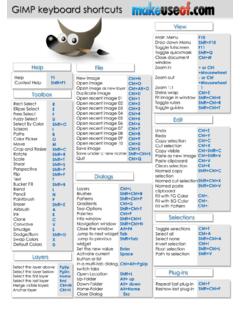
1 Gimp Quick Reference card ManagementCtr+NCreate new imageCtr+OOpen existing imageCtr+SSave current imageCtr+WClose current imageImage EditingCtr+ZUndo last changeCtr+RRedo last changeCtr+XCut current image/selectionCtr+CCopy current image/selectionCtr+VPaste current image/selectionShift+Ctr+XCut current image/selection into namedbufferShift+Ctr+CCopy current image/selection intonamed bufferShift+Ctr+VPaste current image/selection fromnamed bufferCtr+KClear image/selection with currentbackground colorCtr+, (comma) Fill current image/selection withcurrent background colorCtr+. (dot)Fill current image/selection with currentforeground colorImage SelectionCtr+IInvert current selectionCtr+ASelect all imageShift+Ctr+ARemove all selectionsShift+Ctr+LCreate floating selectionShift+Ctr+FFeather selectionShift+Ctr+HSharpen selectionImage Viewing= (equal)Zoom in image- (minus)Zoom out Image1 Zoom 1:1 scaleShift+Ctr+IOpen info windowShift+Ctr+NOpen zoom navigation windowCtr+TToggle selection on/offShift+Ctr+RToggle rullers on/offShift+Ctr+SToggle status bar on/offShift+Ctr+TTogglesCtr+EShrink wrap window to image size Image ManipulationAlt+RSwitch image to RGB modeAlt+GSwitch image to grayscale modeAlt+ISwitch image to indexed (GIF) modeShift+Ctr+OOffset imageCtr+DDuplicate image Layers ManipulationCtr+HAnchor layerCtr+MMerge visible layers ToolsDDefault colorsXSwap colorsOColor pickerTText toolSelectionRSelect Rectangle toolESelect Ellipse toolFSelect Freehand toolZSelect Magic Wand (Fuzzy)
2 ToolBSelect Bezier toolISelect Intelligent Scissors tool TransformMSelect Move toolShift+MSelect Magnify toolShift+CSelect Crop & Resize toolShift+TSelect Transform toolShift+FSelect Flip toolPaintingShift+BBucket Fill toolLBlending toolShift+PPencil toolPPaintbrush toolShift+EEraser toolAAirbrush toolCClone toolVConvolve toolIInk toolShift+DDodge/Burn toolShift+SSmudge tool Tools + Mouse ManipulationKeyboard keys pressed before Mouse button withRectangular, Ellipse, Freehand and Magic WandSelection toolsCtr+Left Mouse ButtonSubtract selectionShift+Left Mouse ButtonAdd selectionShift+Ctr+Left Mouse ButtonIntersect selectionKeyboard keys pressed after Mouse keyRectangular Selection ToolsShift+Left Mouse ButtonSquare selectionCtr+Left Mouse Button Rectangle selectionwith begining in themiddle of the rectangleShift+Ctr+Left Mouse Button Square selection withbegining in the middleof the squareEllipse Selection ToolsShift+Left Mouse ButtonCircle selectionCtr+Left Mouse ButtonElipse selection withbegining in the middleof the ellipseShift+Ctr+Left Mouse ButtonCircle selection withbegining in the middleof the circleZoom In/Out ToolCtr+Left Mouse ButtonToggle zoom in/outFlip ToolCtr+Left Mouse ButtonToggle fliphorizontaly/verticallyBucket ToolCtr+Left Mouse ButtonToggle fillforeground/background colorsPencil, Brush.
3 Airbrush ToolCtr+Left Mouse ButtonPick colors from theimageShift+Left Mouse ButtonDraw a lineErase ToolCtr+Left Mouse ButtonAnti erase imageShift+Left Mouse ButtonErase a lineCloning ToolCtr+Left Mouse ButtonSets the source point inthe imageLeft Mouse Button Sets the destinationpoint, hold to drawwith cloneConvolve ToolCtr+Left Mouse ButtonToggle blur/sharpenimageShift+Left Mouse ButtonBlur/Sharpen in lineDodge/Burn ToolCtr+Left Mouse ButtonToggle dodge/burnimageShift+Left Mouse ButtonDodge/Burn in line Smudge ToolShift+Left Mouse ButtonSmudge in lineMeasurement ToolCtr+Left Mouse ButtonHorizontal distanceCtr+Left Mouse ButtonDuble click add guide DialogsCtr+LOpen Layers, Channels & Path DialogShift+Ctr+BOpen Brushes DialogShift+Ctr+POpen Patterns DialogCtr+GOpen Gradients DialogCtr+POpen Pallette Dialog HelpF1 HelpShift+F1 Context helpAdd a key as a shortcut to the menu item Openmenu, place cursor over item, press desiredshortcut key Useful gimp web the plugin registryCopyright Ilia Tyker 2002 for Gimp version is granted under General Public License (GPL) to distributeand make a copies of this card provided the copyright notice and thispermission notice preserverd on all copies