Transcription of LOYALTY EBONUS
1 EBONUS Technical StepsEBONUSLOYALTY>1/91 .1 The EBONUS tool allows approved users to post EBONUS points or Frequent Flyer miles to a Marriott Bonvoy Member s account. You may do this because of a property promotion, service recovery, compensation for a walk-in Guest, or an above-property initiative. The points or miles that are issued with a property bonus are charged to the hotel as an expense. Users must complete training on the Digital Learning Platform, request access through Identity Shoppe, and be approved by their supervisor, prior to using the tool . Approval takes approximately 3 business days. You will need an EID to request EBONUS ToolIntroduction213 Getting Help> EBONUS TECHNICAL STEPSLOYALTY2/92 .1 Open MGS and find EBONUS in the My Applications list at the left side of the screen. If EBONUS is not included in the My Applications list, click Add / Remove and select EBONUS . This will add it to the list.
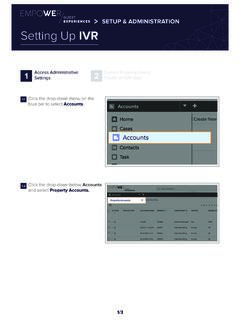
2 Alternatively, open MGS and use the keyword search for and the EBONUS Posting tool hyperlink to review the Guidelines and Standards. Click I have Read and Accept the Guidelines and Standards to continue. If you do not understand them, you may click the Do Not Accept option. You will not be able to proceed and will be returned to the MGS login screen. Contact your supervisor to answer any EBONUS ToolIntroduction213 Getting Help> EBONUS TECHNICAL STEPSLOYALTY3/9 Enter the Property NameThe first part of the tool contains information about the bonus being awarded. To start, click the magnifying glass to the right of Property. Enter your MARSHA Code or Property Name in the pop-up window and click Find. Your property name will appear if it matches the search criteria you entered. Click the property name the Member Account NumberUse the same process to select the Member Account Number.
3 Click the magnifying glass to the right of Member Account Number. Enter the Member Account Number in the pop-up window and click Find. When the Member Account Number appears on the screen, click it to > EBONUS TECHNICAL STEPSLOYALTY4/9 Select the Bonus ReasonUse the drop-down menu to select the reason for awarding points or a miles bonus. Select Walk to compensate Elite Members for being unable to accommodate their stay, including points required to fulfil the Ultimate Reservation Guarantee. Only Points may be awarded for this reason. Miles are not available. Select Service Recovery to compensate Members for service issues or other problems encountered while on property or in connection with their stay. Note: associate members are not eligible for service recovery. Select Promotions for promotions with designated rate codes. Select Hotel Initiatives to award points for food and beverage when the Guest is not staying at the hotel;, and carry out Member appreciation initiatives available to the general public, or identified market segments approved by property leadership.
4 Use the job aid for Off Folio Earning , for specific steps to award points for off- folio dining. Select Market/CLS initiatives to carry out short- term projects and proofs of concept approved by above-property Bonus EarnedSelect the date the Bonus was earned. This field defaults to today s date . To enter a previous date, use the month/day/year format, or click the calendar icon. Bonuses cannot be entered for a future > EBONUS TECHNICAL STEPSLOYALTY5/9 Select the Type of BonusUse the drop-down menu to select the type of bonus, either points or miles, that you would like to award. Bonus reasons are specific to each property - if your property is participating in a promotion, it may appear on this list too. This description will appear on the Member s the Bonus AmountEnter the total amount of points or miles that you would like to award. Bonus entries over 10,000 points or 3,000 miles require the Frequent Flyer Number if Awarding MilesIf you are awarding a miles bonus to the Member, select the airline Frequent Flyer Number from the drop-down menu.
5 Once posted, miles postings cannot be CommentsUse the Comments field to provide detail about the entry, for example, a missed wake-up call. This will become a permanent part of the posting for audit purposes, and is an important field for the approver to review. The comment will not be seen by the > EBONUS TECHNICAL STEPSLOYALTY6/9 Customer Email AddressUse the Customer Email Address field if you would like to send the Member a confirmation email. This field is not pre-populated by the bonus tool , so you will need to obtain the email address from another source. For example, if the Guest is staying at the hotel, you could use the Property Management System (PMS) or Empower: GXP to find the email InformationThe EBONUS tool contains information about the associate entering the bonus data to research errors or questions about a posting. The tool pre-populates the preparer s first and last name from their EID.
6 Enter an email and phone number, including the country and area the Approver InformationThe tool allows the preparer to enter the information for the approver, including first and last name, phone number and email address. The Send Email to Approver option is selected by default. If the approver prefers to check the EBONUS tool for pending approvals, rather than receive multiple email notifications, uncheck the Send Email to Approver > EBONUS TECHNICAL STEPSLOYALTY7/9 Submit the TransactionYou have entered all required fields in the EBONUS tool . Review the information in each field to check for accuracy. Click the Submit button to confirm the posting the TransactionThis screen provides the estimated cost to the hotel, and a second chance to review the posting. Click Confirm to finalize the posting, or Go Back to make edits to the Confirm is clicked, a second message appears with a final option to Confirm or Cancel.
7 Click Confirm to submit the EBONUS transaction. If your hotel requires it, keep a screenshot for your records. Transactions below 10,000 points or 3,000 miles are automatically approved. Transactions over 10,000 points or 3,000 miles will not be processed until approval is received. There might be a small difference between the system calculating the bonus and the system charging the property. For the most part, the estimate and the actual charge will be the > EBONUS TECHNICAL STEPSLOYALTY8/9 Email to ApproverIf a posting requires approval, the designated approver will receive an email notification, and must approve the posting within 48 hours to provide the points to the Member in the expected timeframe. While the email will only be sent to the person entered in the Approver field, other Approvers may also access and approve the entry, by searching for it in EBONUS and using this ConfirmationThe Points and Miles are added to the Member s account balance immediately after the posting is approved.
8 The Member will receive an email notification that the points have been posted to their account. If the email address entered in the tool is not correct, the Member will not receive an StepsYou may now enter another EBONUS transaction by choosing another Member account, or select Logout from the left navigation > EBONUS TECHNICAL STEPSLOYALTY9/9 Getting HelpContact Marriott Bonvoy Property Support for help. Contact information can be found in the Marriott Bonvoy Events Associate at a Glance or on MGS, keyword search Property Support. For more information on associate member details and exclusions, refer to the Marriott Bonvoy for Associates page on MGS, keyword search Marriott Bonvoy for .1 Launch EBONUS ToolIntroduction213 Getting Hel