Transcription of The Gimp Cheat Sheet Bill Kendrick …
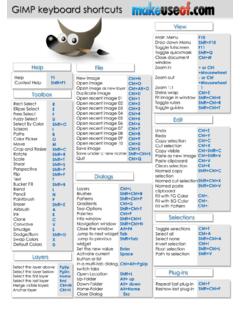
1 The Gimp Cheat SheetBill Kendrick Linux Users Group - June 11, 2003 Selection toolsSHIFT + Click adds to current selectionCTRL + Click removes from current selectionALT + Click moves current selection (but not contents)Rect/Oval SelectionHold SHIFT for exact square/circleHold CTRL to center selectionFuzzy Selection (Magic Wand)Click-n-drag down to select moreClick-n-drag up to select lessBezier Curve (Fountain pen)Click to create path point to alter its curveSHIFT + Click-n-drag alters curve on one sideCTRL + Click-n-drag moves pointFinally, click inside shape to convert to selectionShape Selection (Scissors)Click around a shapePath points will snap to shapeClick-n-drag point to move itFinally, click to zoom inCTRL + Click to zoom outClick-n-drag to zoom around an area[-] Zooms out[=] Zooms in[1] 100% zoomTransform Tool Rotation Click-n-drag to change angle CTRL + Click-n-drag to snap to 15 Scaling Click-n-drag to change size CTRL for only vertical SHIFT for only horizontal CTRL + SHIFT keeps aspect ratio (shape)
2 Shearing Click-n-drag left/right to shear horizontally Click-n-drag up/down to shear vertically Perspective Click-n-drag near corners to change shapeFlipClick to flip horizontallyCTRL for verticallyDrawing ToolsSHIFT + Click to draw a linePencilRough edgesPaintbrushSmooth blendingClone Tool (Rubber Stamp)CTRL + Click to pick sourceClick-n-drag to cloneSource can be different image!MenusRight-click canvas to bring upOr click menu button (top left corner)Click ---- to 'tear' menu off (floating)Hover mouse over menu item and press a key combo. to set a shortcut!QuickmaskRed square button at bottom left cornerDisplays selection as a red overlayRed is unselected, clear is selectedUse drawing tools, selection tools, filters, dashed-box to return to normal mode!
3 Gimp URLs:Home-page: version: OS X version: Manual: : Gimp Users Group: + button at bottom rightClick-n-drag to scroll around a zoomed-out imageLayersLike transparent sheets with various parts of your image on themRearrange them (move up/down)Editing one layer doesn't affect others Alpha lets lower layers show through Modes let layers apply effects ('color only', 'subtract', 'screen', etc.) Alpha Masks let you 'draw' which areas in a layer are see-through, and by how muchBottom Layer2nd Layer ( Hue mode)Final image+=Alpha mask on 2nd layer2nd layer only affects where mask is white