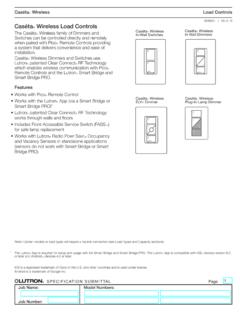
Transcription of TM - Leviton
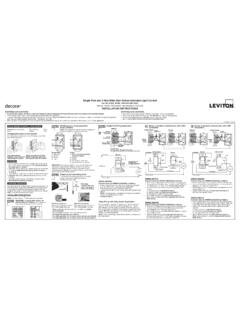
1 Step 5 Testing your switch prior to mounting in wall box: SETUP FCC COMPLIANCE STATEMENT. decora smart Position all wires to provide room in outlet Leviton Decora SmartTM accessories are compatible with a variety of HomeKit-enabled This device complies with Part 15 of the FCC Rules. Operation is subject to wall box for switch . apps. Leviton recommends using the Leviton Decora smart Home app to add and following two conditions: (1) this device may not cause harmful interference, and Ensure that the word "TOP" is facing up con gure Leviton HomeKit-enabled accessories and to access advanced features. (2) this device must accept any interference received, including interference that Leviton Decora SmartTM on switch strap. Download the Leviton Decora smart Home app from the App Store. may cause undesired operation of the device.
2 Partially screw in mounting screws in wall Ensure the Leviton accessory is properly wired and power This equipment has been tested and found to comply with the limits for a switch with HomeKitTM box mounting holes. is applied. Class B Digital Device, pursuant to Part 15 of the FCC Rules. These limits NOTE: Dress wires with a bend as shown Upon initial power-up the Locator LED will ash green to show the accessory is ready. are designed to provide reasonable protection against harmful interference Technology in diagram in order to relieve stress when If the Locator LED is no longer ashing green when you are ready to add the accessory in a residential installation. This equipment generates, uses, and can radiate mounting switch . proceed to the WAC Reset procedure. radio frequency energy and, if not installed and used in accordance with the Cat.
3 No. DH15S instructions, may cause harmful interference to radio communications. However, there is no guarantee that interference will not occur in a particular installation. If Universal Electronic switch this equipment does cause harmful interference to radio or television reception, ADDING AN ACCESSORY which can be determined by turning the equipment OFF and ON, the user is HomeKitTM technology makes adding a HomeKit-enabled accessory to the home encouraged to try to correct the interference by one or more of the following Rated: 120/277 VAC, 60 Hz network quick and easy. measures: 1800W Incandescent Reorient or relocate the receiving Antenna. 5A, 600W LED/CFL When the accessory is ready for enrollment the Locator LED will ash green. Restore power at circuit breaker or fuse. Increase the separation between the equipment and the receiver.
4 15A (120 VAC) Fluorescent If the Locator LED is not ashing green, proceed to the WAC Reset section to prepare Connect the equipment into an outlet on a circuit different from that to which 8A (277 VAC) Fluorescent Press pad until locator light is OFF. Lights the accessory for learning. the receiver is connected. 15A Resistive should turn ON. Ensure the iPhone or iPad is joined to your wireless network before adding the 1/2 HP Motor Consult the dealer or an experienced radio/tv technician for help. If lights do not turn ON, refer to the accessory. FCC CAUTION. TROUBLESHOOTING section. During the initial installation follow app instructions or press + Any changes or modi cations not expressly approved by Leviton Manufacturing to add an accessory. Co., Inc., could void the user's authority to operate the equipment.
5 INSTALLATION WAC RESET. INSTRUCTIONS IC COMPLIANCE STATEMENT. In situations where a wireless access point or password is changed but the con guration of the dimmer needs to remain, use This device complies with Industry Canada licence-exempt RSS standard(s). the following WAC Reset procedure. This procedure can also be Operation is subject to the following two conditions: (1) this device may not Use Siri or the Step 6 switch Mounting: used to place the accessory in ready mode with the locator LED cause interference, and (2) this device must accept any interference, including TURN OFF POWER AT ashing green: interference that may cause undesired operation of the device. Leviton Decora CIRCUIT BREAKER OR FUSE. Hold the top of the paddle for 7 seconds. smart Home - After 7 seconds the Locator LED will blink amber.
6 App on your Installation may now be completed by Release the top of the paddle and the switch will reset. iPhone or iPad tightening mounting screws into wall Once the switch has reset the Locator LED will blink green. box. Attach wallplate. for home control Leviton DECORA SMARTTM FEATURES. Leviton Decora SmartTM products contain unique features which can be con gured 2017 Leviton Mfg. Co., Inc. DI-000-DH15S-02A via the Leviton Decora smart Home app. Locator LED Setup: Step 7 Restore Power: Leviton Decora SmartTM Switches have a locator LED on the bottom of the paddle. Restore power at circuit breaker or fuse. The LED can be used to locate the switch in the dark, indicate the current load status Installation is complete. or can be turned OFF at all times. Status Mode: Uses the LED to re ect the current state of the light.
7 If the light is OPERATION currently ON, the LED is ON, if the light is currently OFF, the LED is OFF. Locator Mode (default): Uses the LED to help nd the switch in a dark room. If the light is currently OFF, the LED is ON, if the light is currently ON, the LED is OFF. NOTE: The locator light will illuminate when the load is in the OFF position to LED OFF: Places the LED is a permanently OFF state. facilitate access in the dark. LED Level Indicator Timeout Rocker Pad (Default settings) The LED indicators on the side of the switch can be programmed to be ON, OFF, or timeout COPYRIGHT AND TRADEMARK INFORMATION Turn ON from OFF position: after a prede nded period of time. Decora is a registered trademark of Leviton Manufacturing Co., Inc. Tap top of rocker Lights turn ON. Level Indicators OFF. Apple, iPhone, iPad, Apple TV and Siri are trademarks of Apple Inc.
8 , registered in the Turn OFF from ON position: Level Indicator Timeout (seconds) (default is 3 seconds). and other countries. HomeKit is a trademark of Apple Inc. Tap bottom of rocker Lights turn OFF. Levels Indicators Always ON. Use herein of third party trademarks, service marks, trade names, brand names and/ If there is a power outage, when the power is restored, the lights will return to or product names are for informational purposes only, are/may be the trademarks of their WEB VERSION. the last setting before the power interruption. respective owners; such use is not meant to imply af liation, sponsorship, or endorsement. Cleaning: Clean with a damp cloth. DO NOT use chemical cleaners. FACTORY DEFAULT. No part of this document may be reproduced, transmitted or transcribed without the express written permission of Leviton Manufacturing Co.
9 , Inc. In situations where a switch needs to be returned to factory default follow these steps: TECHNICAL SUPPORT Hold the top of the paddle for a total of 14 seconds. For additional information contact Leviton 's Technical Support at: - After the rst 7 seconds the LED turns amber. 1-800-824-3005 or visit Leviton 's website at - Continue to hold the top of the paddle until the Locator LED quickly ashes red/amber. Release the top of the paddle and the switch will reset. FOR CANADA ONLY. For warranty information and/or product returns, residents of Canada should contact TROUBLESHOOTING. Leviton in writing at Leviton Manufacturing of Canada Ltd to the attention of the Quality Assurance Department, 165 Hymus Blvd, Pointe-Claire (Quebec), Canada H9R 1E9 or by telephone at 1-800-405-5320. Lights Flickering - Lamp has a bad connection.
10 - Wires not secured rmly with wire connectors of switch or terminal screws of remote. LIMITED 5 YEAR WARRANTY AND EXCLUSIONS Light does not turn ON and Locator LED does not turn ON. Leviton warrants to the original consumer purchaser and not for the bene t of anyone else that Rocker - Circuit breaker or fuse has tripped. this product at the time of its sale by Leviton is free of defects in materials and workmanship under - Lamp is burned out. normal and proper use for ve years from the purchase date. Leviton 's only obligation is to correct - Neutral not wired to switch (White wire). such defects by repair or replacement, at its option. For details visit or call - Con rm that the switch is being supplied from a 120/277V AC, 60 Hz source ONLY. 1-800-824-3005. This warranty excludes and there is disclaimed liability for labor for removal of Remote does not operate lights this product or reinstallation.